

Get the App on Your Phone
No app store. No download. Just tap a few buttons and MyAlphaPics lives right on your home screen — ready to play anytime, even without Wi-Fi.
Your Family Photos Never Leave Your Device
MyAlphaPics is what's called a Progressive Web App (PWA) — we'll just call it "the app" from here on. What makes it special isn't just that it works without an internet connection — it's that everything in it stays completely on your phone. The photos you upload, your child's progress, every letter they've practiced — none of it ever touches our servers. We genuinely can't see it. That's not a policy, it's just how the app is built.
Before You Install
Make sure you've completed your purchase and have your activation code handy.
Open your browser and go to app.myalphapics.com
On your phone, open Chrome (Android) or Safari (iPhone) and navigate to app.myalphapics.com. This is where the app lives. You'll be asked to enter your activation code — the 6-digit code that was emailed to you after your purchase.
Once you enter your code, the app unlocks and you're ready to install.
Installing on Android
Tap the three-dot menu in the top right corner of Chrome
Look for the three vertical dots in the upper-right corner of your Chrome browser. Tap them to open the browser menu.
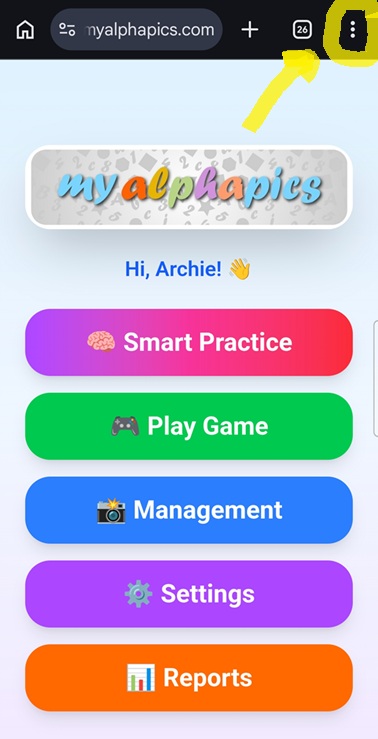
The three dots are highlighted — tap there to open the menu.
Scroll down in the menu to find "Add to Home screen"
A menu will drop down. It may be long — scroll down past the top options. You're looking for "Add to Home screen".
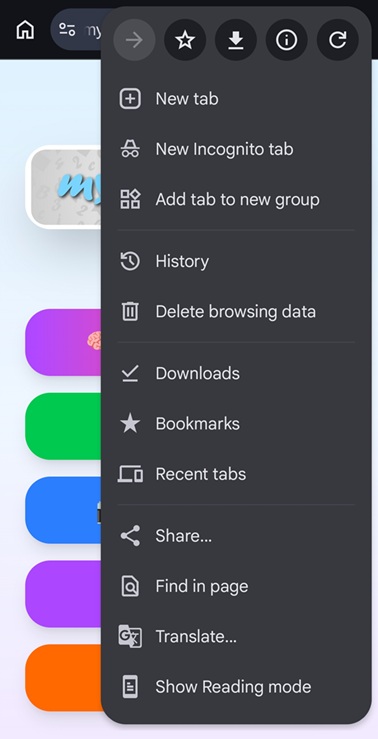
The top of the menu — keep scrolling down.
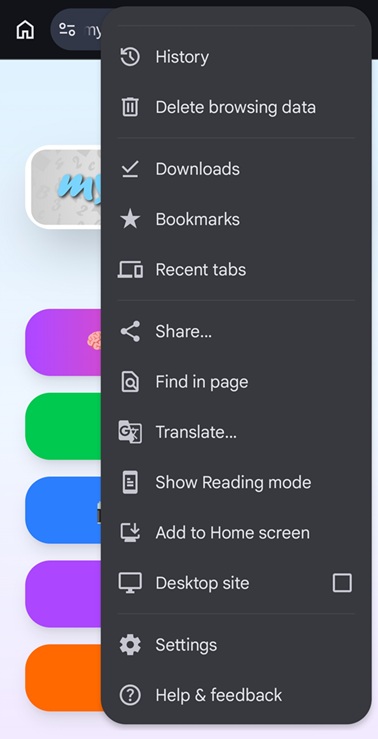
Scroll down until you see "Add to Home screen" — then tap it.
Tap "Install App" on the confirmation screen
A small pop-up will appear asking you to confirm. Tap "Install App" and you're done.
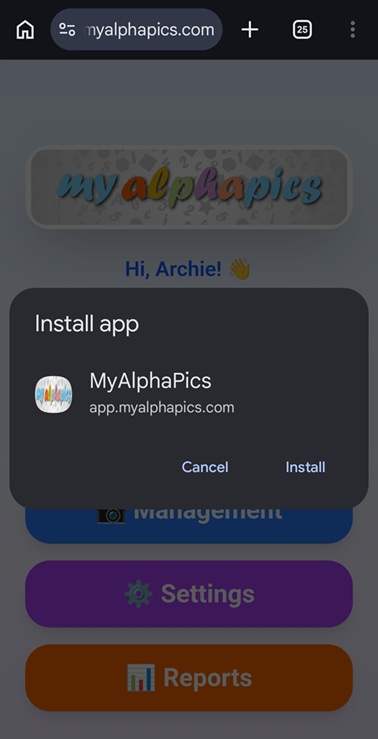
Tap "Install App" to confirm.
Find the MyAlphaPics icon on your home screen and tap to play
That's it! MyAlphaPics is now installed on your phone just like any other app. Find the icon on your home screen and tap it anytime to start a session — no browser needed, no internet required.
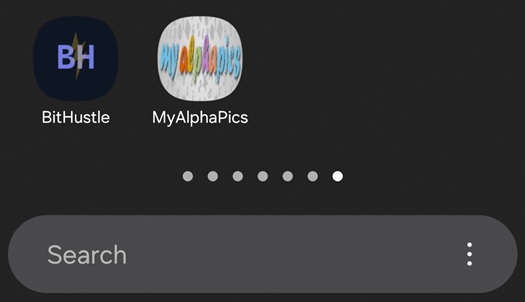
The MyAlphaPics icon on your home screen — tap it to play.
Installing on iPhone
iPhone screenshots coming soon — but the steps are simple:
Tap the Share button at the bottom of Safari
Make sure you're using Safari (not Chrome) on your iPhone — Safari is required for the install to work on iOS. At the bottom of the screen, tap the Share button — it looks like a box with an arrow pointing upward.
Scroll down and tap "Add to Home Screen"
A menu slides up from the bottom. Scroll down through the options until you see "Add to Home Screen" — it has a small plus icon next to it. Tap it.
Tap "Add" in the top right corner
A screen will appear showing the app name and icon. Tap "Add" in the top-right corner to confirm. MyAlphaPics will appear on your home screen, ready to use anytime.
Works Without Wi-Fi
Once installed, MyAlphaPics works completely offline. Head to the park, a long car ride, grandma's house — wherever your child wants to learn, the app comes along. No signal needed, no buffering, no "please connect to the internet" messages. Everything is already on the device and ready to go.