

The App Learns As Your Child Does
Every tap, every match, every correct answer — MyAlphaPics is quietly keeping track. After a few days of play, Smart Practice uses that data to focus your child's practice exactly where they need it most. And it works for both sides of the app — letters and numbers each have their own Smart Practice.
First: See the Data for Yourself
Before using Smart Practice, it's worth taking a look at the Reports section. You'll see exactly what the app has been tracking — which letters your child has seen, how their recognition is improving over time, and which specific letters they're finding hardest. It's a surprisingly clear picture of where they are in their learning journey.
Open the menu and select Reports
Tap the menu icon and select Reports. You'll find three tabs here, each giving you a different view of how your child is doing.
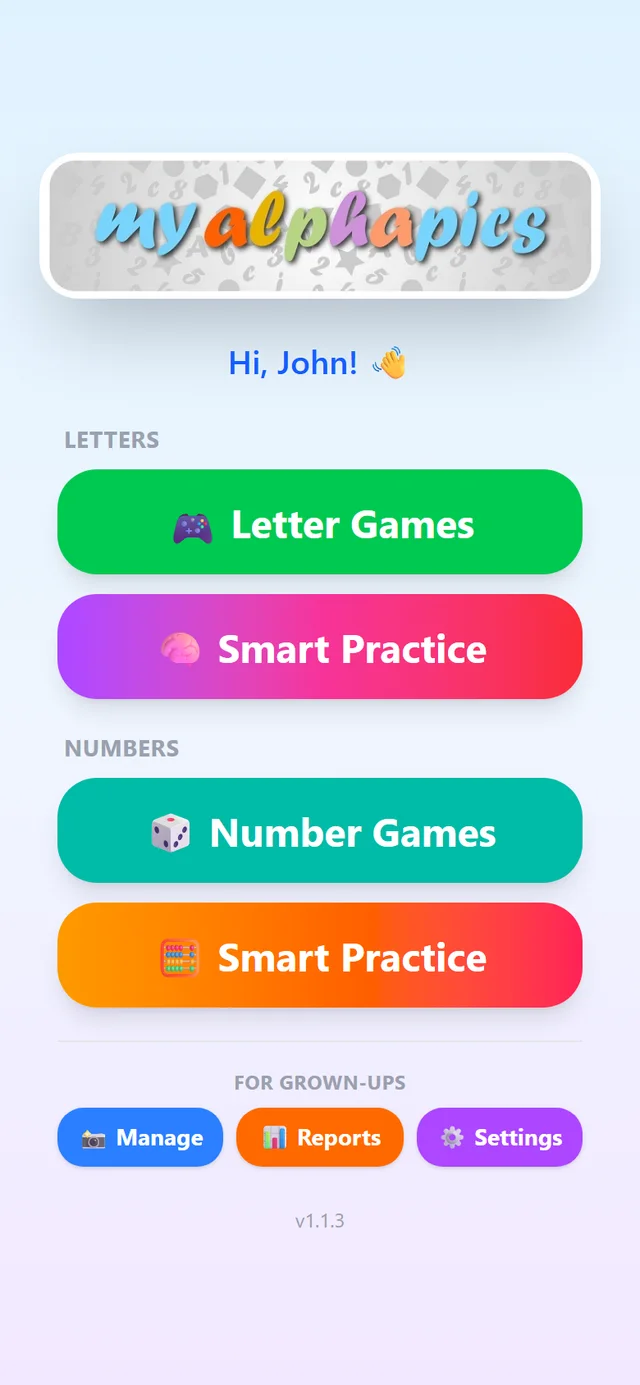
Reports sits in the For Grown-Ups row at the bottom of the main menu.
Tab 1: Progress — how many times has each letter been seen?
The first tab is the simplest — it shows how often each letter has been viewed. At each game level, you have the option to restart from A or to pick up where your child left off. If you use the "left off" option consistently, you'll see the view counts stay fairly even across all 26 letters — a good sign that your child is getting balanced exposure.
If some letters have dramatically fewer views, it may just mean those levels haven't been reached yet — or it might be worth starting a session there on purpose.
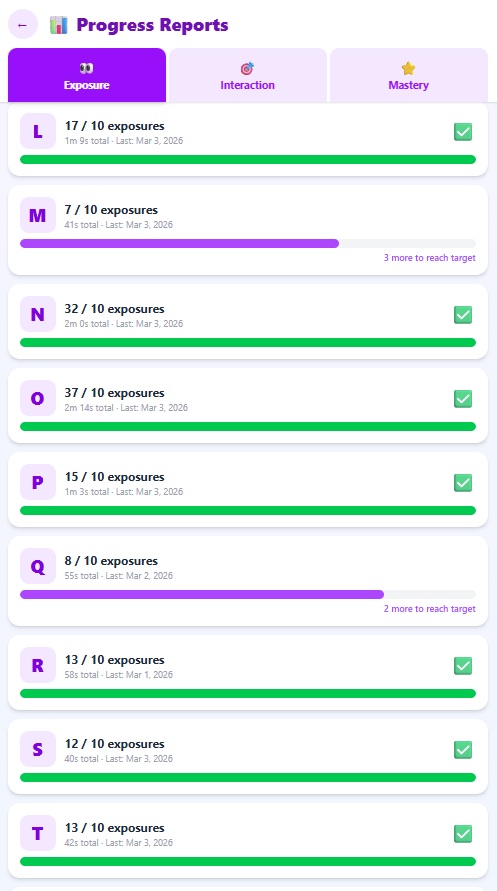
The Progress tab — each letter and how many times it's been seen.
Tab 2: Interaction — is your child's recognition improving?
The second tab goes a step further. The chart at the bottom shows a trend line over several days — as your child plays more, you can watch their letter recognition gradually improve. It's one of those quiet, satisfying moments as a parent to see that line moving in the right direction.
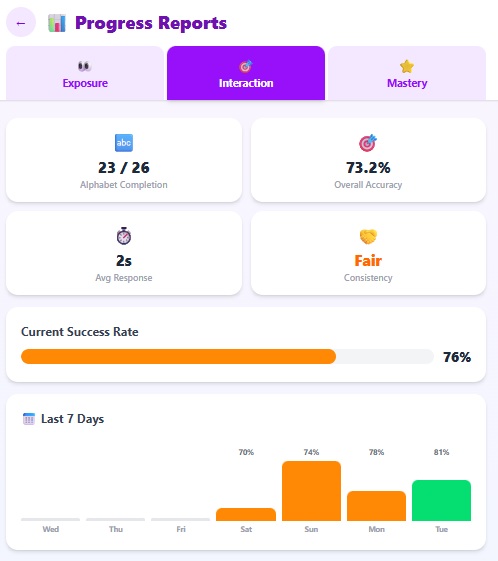
The Interaction tab — a trend chart showing improvement over days of play.
Tab 3: Mastery — which letters are proving tricky?
This is where it gets really useful. The Mastery tab breaks down performance letter by letter. At a glance you can see which letters your child is sailing through and which ones they're consistently getting wrong. In the example below, M, W, and Q are showing up as trouble spots.
Tap any individual letter to see the full detail — total attempts, percentage correct, and the last time your child practiced that letter.
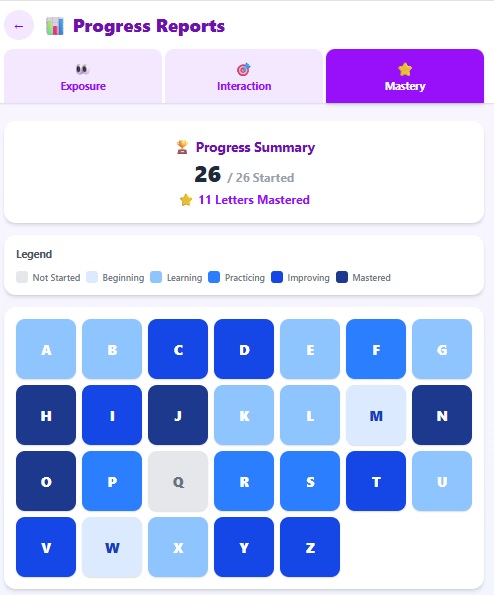
M, W, and Q are flagged — these need more practice.
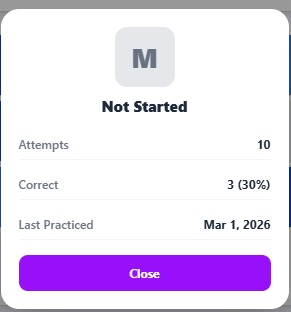
Tap any letter for a full breakdown — attempts, accuracy, and last practiced.
Why M, W, and Q?
These are among the most commonly confused letters for young children. M and W look like mirror images of each other. Q is rarely encountered in everyday words. Seeing them flagged in your child's data is completely normal — and exactly the kind of thing Smart Practice is built to address.
Now let the app do something with that data.
Reports tell you what's happening. Smart Practice acts on it. Instead of cycling through all 26 letters in order, Smart Practice builds a session around the specific letters your child is struggling with — and runs them through every level of the game with those letters as the focus. More repetition where it matters, less time on letters they've already mastered.
Open the menu and select Smart Practice
Head back to the main menu. Each subject has its own Smart Practice button right below its games — one under Letters, one under Numbers. Tap the Letters one.
Letters and Numbers each have their own Smart Practice button.
See which letters the app has selected — then tap Let's Go!
The Adaptive Learning screen shows you exactly which letters have been chosen for this session based on your child's history. You'll recognize them — they're the ones from the Mastery report. Tap "Let's Go!" and the game begins, progressing through each level of difficulty with those letters as the constant focus.
The session feels just like regular play to your child. They won't know the difference — they'll just notice they're getting better.
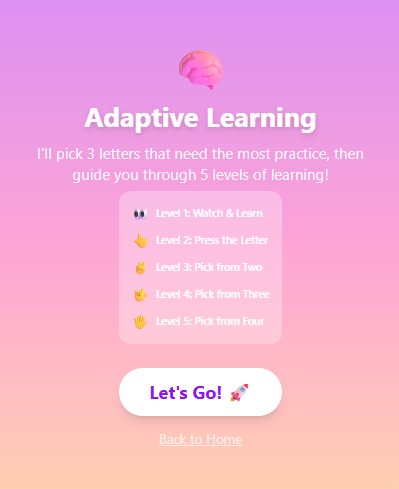
The letters from the Mastery report — ready to practice. Tap "Let's Go!"
Numbers get their own Smart Practice.
Counting works the same way. The app tracks how your child does with each number, notices which ones are tricky, and builds a focused session around exactly those — climbing its own ladder from watching-and-counting together, to tapping each picture to count it, to picking the right number from a set of choices. You decide how high the counting goes and raise the limit as your child grows. Two subjects, one quiet system working in the background.
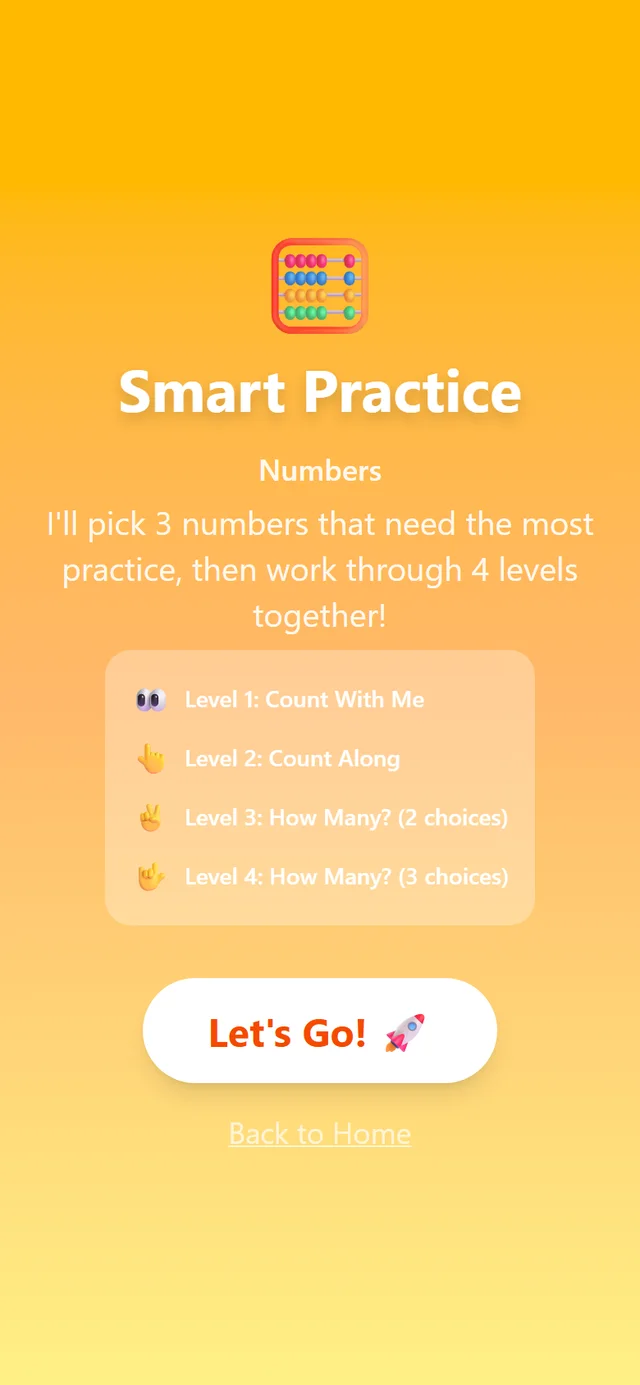
Numbers Smart Practice climbs its own four-level ladder.
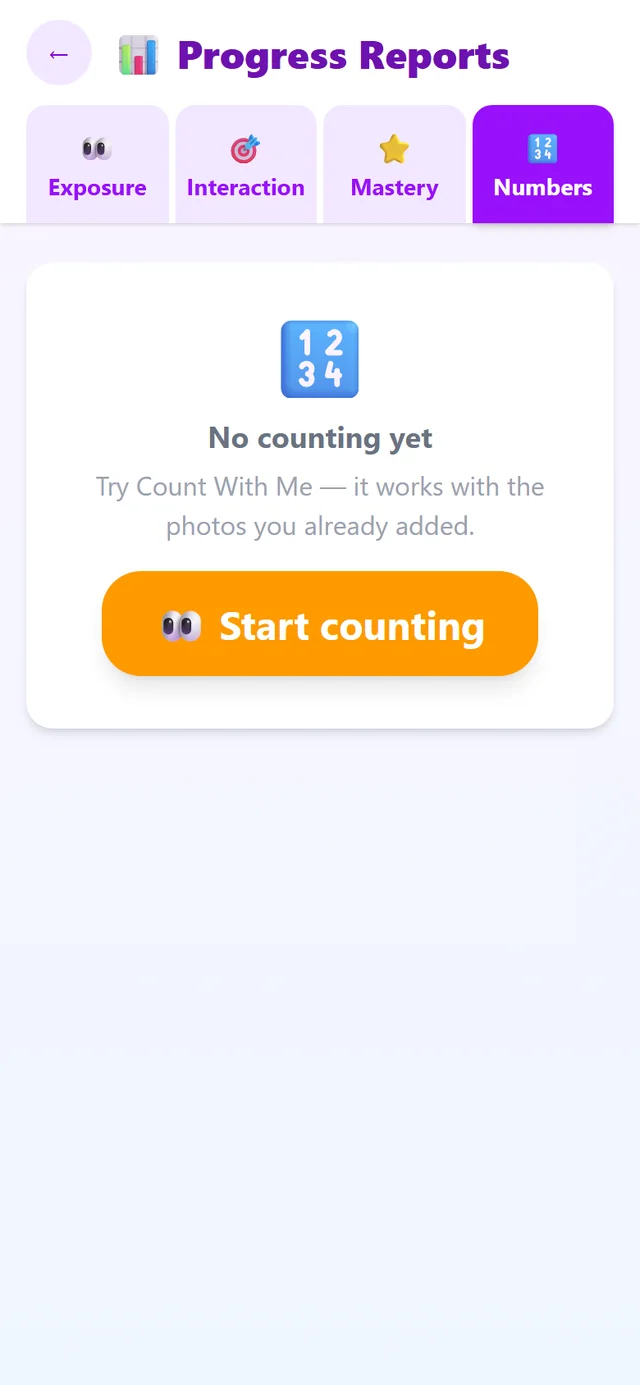
Reports has a Numbers tab tracking counting progress too.